
FlashGet Kids:parental control
HONGKONG FLASHGET NETWORK TECHNOLOGYParenting
4.5856.00 Reviews
- Version
- 1.4.3.0
- Installs
- 10.00M
- Age Rating
- Everyone
Screenshots

Our Review of FlashGet Kids:parental control
 Analysis by Appyee
When a child is out of sight but still carrying a phone, I find that a location check can answer a practical question without turning every trip into a stream of messages. That is the capability I would focus on with FlashGet Kids: parental control: its location tools are part of a broader parenting app, but their real value is helping a parent check in calmly and decide whether a follow-up is needed.
A location check is most useful when it answers one clear question
Location features are easy to overuse. I would not open the app every few minutes just to watch a child’s movements; that can make a safety tool feel like surveillance. A more sensible routine is to use it at moments that matter, such as checking whether a child has arrived somewhere they were expected to go. That keeps the feature tied to a real need rather than making constant monitoring the default.
That distinction also helps set expectations. A location view can provide useful context, but it does not replace a conversation, a call, or an agreed plan. If a child is late, I would use the information as a starting point for deciding what to do next—not assume that a map view explains the whole situation. For younger children, a parent may want closer oversight; with older children, agreeing in advance when location checks are appropriate can make the same tool feel more respectful.
Build the routine around the child’s day
Before relying on location checks, I would make sure the child knows why the app is being used and what the family expects. For example, a parent and child can agree that the check is for the walk between school and home, rather than for tracking every stop. That small conversation makes the feature easier to explain and can prevent a useful safety measure from becoming a source of conflict.
There is also a practical benefit to keeping the routine simple. If the family already has a reliable arrival message, the app does not need to replace it; it can serve as a backup when a message is forgotten or plans change. I would decide beforehand what counts as a reason to call, and what is simply normal variation in a child’s route. A clear rule can reduce unnecessary worry just as much as the location tool itself.
Where it fits among parenting tools
Compared with relying only on calls or texts, location checking can help when a child cannot answer immediately. Compared with a dedicated location-sharing tool, a parenting app can bring location into the same general routine as screen-time and app oversight. That broader approach may suit families who want one place to manage several parts of device use, though it also means the app is more involved than a simple map-sharing option.
I would choose based on the problem I actually need to solve. If the only concern is knowing whether a family member has reached a destination, a simpler location-sharing arrangement may be enough. If I also want parental controls around a child’s phone use, the wider scope of FlashGet Kids may make more sense. The trade-off is that the family has to be comfortable setting up and maintaining a more comprehensive tool rather than expecting one feature to do everything.
A realistic school-day use
Imagine a child walking home after an activity while a parent is still at work. They have agreed to send a message when they arrive, but the message has not come through. I would check the app for context, then contact the child if the situation still seemed unclear. If the child is with a trusted adult or has changed plans, a quick conversation can resolve it; the location feature is helpful because it gives the parent another way to assess the situation, not because it removes the need to communicate.
This kind of use is different from checking a child’s location without telling them or treating a delayed update as proof that something is wrong. The most useful workflow is modest: agree on the plan, use the location view when the expected check-in is missing, and follow up directly. That approach keeps the technology in a supporting role and makes it less likely to create false confidence or needless alarm.
Setup, compatibility, and the household fit
FlashGet Kids is a free parenting app from HONGKONG FLASHGET NETWORK TECHNOLOGY. It is rated for Everyone, has reached over ten million installs, and has a 4.7 average from around 96,000 ratings. The app was released on May 17, 2023, and its current version is 1.3.8.2, with Android 7.0 as the minimum operating system. Those details make it worth checking that the child’s device meets the requirement before building a family routine around it.
The app is free to install, while in-app purchases range from $8.99 to $99.96 per item. I would look at the purchase options in the app and decide whether the available controls match the family’s needs before paying for anything. A parent who only wants occasional location checks may not need to treat every extra control as essential; someone seeking a more involved approach to device management should compare the cost with the value of the features they will actually use.
For a mixed-device household, I would also confirm that the parent and child setup works with the devices the family uses before making it part of a daily routine. The app is available on Android and iOS, but a household should still check the relevant app-store requirements for each device. The simplest setup is the one everyone understands: one parent account, the child’s device linked as intended, and clear family rules about when checks and limits are used.
Ever stumbled upon an app and thought, “Wow, this could actually make my life easier”? Well, say hello to FlashGet Kids: parental control. This app is designed to give parents a little peace of mind in an ever-chaotic digital world. As someone who’s always on the lookout for apps that can add a touch of sanity to my day-to-day parenting, I decided to dive deep into this one. Let’s see if it lives up to the hype!
Setting Up: As Easy as Pie
First things first, getting started with FlashGet Kids: parental control is a breeze. The app is available for both Android and iOS, so no one's left out of the loop. Once you download it, setting it up is straightforward. The user interface is intuitive, which means you won’t be scratching your head trying to figure things out. You simply create a parent account, and then link your child’s device. Easy peasy!
Features That Stand Out
What really caught my eye are the features that this app offers. It's like a Swiss Army knife for digital parenting. Let me walk you through some of the highlights:
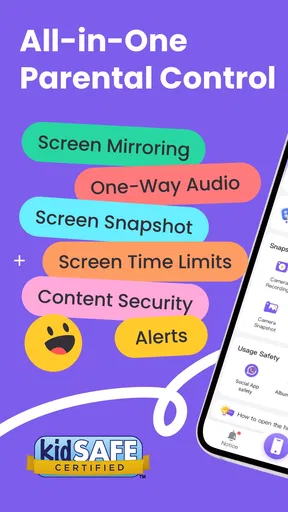
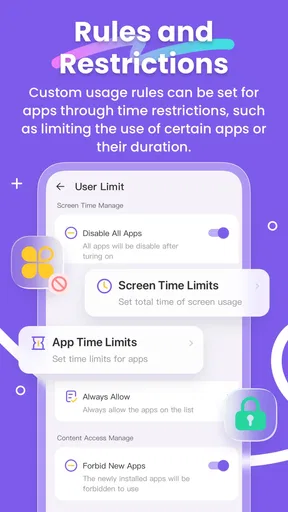
- Screen Time Management: Let’s face it, kids can spend hours on their devices if we let them. FlashGet Kids allows you to set screen time limits, which is a lifesaver.
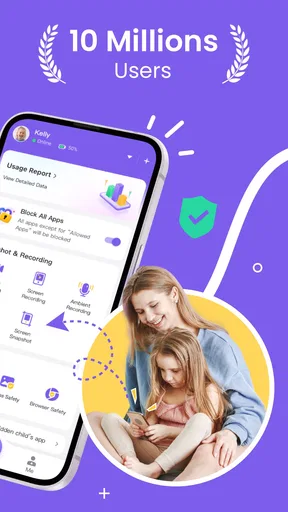
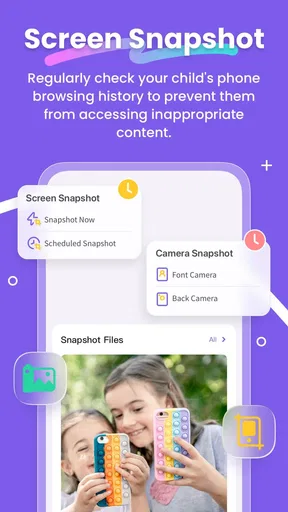
- App Monitoring: You can keep an eye on which apps your child is using. This feature provides detailed reports, so you know exactly what’s going on.
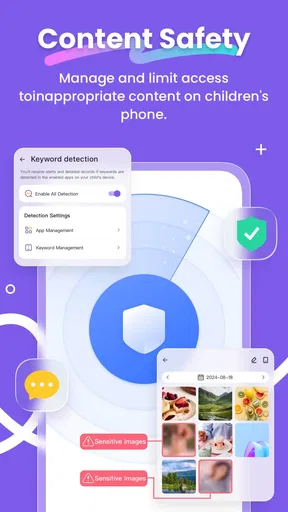
- Web Filtering: The internet can be a wild place. Thankfully, this app allows you to block inappropriate content and ensure your child’s browsing is safe.
- Geolocation: For those moments when you’re wondering if your kid made it to their friend’s house, geolocation has got you covered.
User-Friendly Interface
The app’s interface is designed with parents in mind. It’s simple, clean, and doesn’t require a tech degree to navigate. Each feature is clearly labeled, making it easy to adjust settings on the fly. Plus, the app is lightweight, so it doesn’t bog down your phone’s performance.
Performance and Reliability
In terms of performance, FlashGet Kids runs smoothly. I didn’t experience any crashes or glitches, which is a big win. It’s reliable, and the notifications are prompt, so you’re always in the loop. Whether it’s a screen time alert or a location update, the app delivers timely information without any hiccups.
Real-Life Impact
Now, let’s talk about how this app has impacted my life. Having a tool like this has honestly reduced my stress levels. Knowing that I have control over my child’s digital activities and can ensure their safety online is a huge relief. It’s like having an extra set of eyes keeping watch.
Room for Improvement
Of course, no app is perfect. While FlashGet Kids offers a lot, there are areas for improvement. For instance, enhancing the customization options for alerts would be great. Also, adding more localized language support could make it more accessible to a wider audience. But hey, these are minor tweaks in the grand scheme of things.
My main caution is about how a family uses the controls, not just whether they are available. Screen limits and app oversight can be useful, but rules that arrive without explanation may lead to arguments or workarounds. I would start with one or two clear boundaries, explain the reason for each, and revisit them as a child becomes more independent. The goal is to support better habits, not to turn every device interaction into a test.
I would also avoid treating app reports as a complete picture of a child’s online life. They can help a parent notice patterns and ask more informed questions, but a report cannot explain why a child opened an app or what they encountered there. A calm conversation is still more useful than reacting to a single entry without context. This is especially important for older children, who need room to learn judgment rather than simply have every decision made for them.
Who is likely to benefit, and who may prefer less
I see the strongest fit for parents of children who carry a phone and need a clear, shared routine around check-ins, screen use, and app access. It may be especially useful when a parent wants location support alongside broader parental controls rather than piecing together separate tools. A family that regularly needs to coordinate after-school travel, visits, or changing plans can find that combination practical, provided both parent and child understand the arrangement.
It is less suitable for someone who wants a quiet, one-purpose location tool and has no interest in device rules or app oversight. It may also be the wrong choice for families who do not want monitoring on a child’s phone, or whose older child would be better served by negotiated boundaries and direct communication. In those cases, a basic check-in agreement or a simpler location-sharing option may create less friction.
My practical advice is to decide what success looks like before installing it. If success means a child can travel more independently while a parent has a reasonable way to check an agreed arrival, keep the setup focused on that. If success means changing every aspect of a child’s phone use at once, the controls could feel heavy-handed. A measured start makes it easier to see which parts genuinely help and which can be left unused.
In conclusion, if you’re a parent looking for a reliable partner in the digital realm, FlashGet Kids: parental control is worth considering. It offers peace of mind and helps you manage your child’s device use with ease. While it’s not flawless, its features and reliability make it a strong contender in the world of parental control apps. Give it a shot and see how it fits into your parenting toolkit!
Privacy and Permissions
See what permissions an app requests and how it handles your data.
- Location
- precise location (GPS and network-based)
- Photos/Media/Files
- read the contents of your USB storage, modify or delete the contents of your USB storage
- Storage
- read the contents of your USB storage, modify or delete the contents of your USB storage
- Camera
- take pictures and videos
- Wi-Fi connection information
- view Wi-Fi connections
- Other
- view network connections, pair with Bluetooth devices, change network connectivity, allow Wi-Fi Multicast reception, connect and disconnect from Wi-Fi, full network access, change your audio settings, run at startup, draw over other apps, control vibration, prevent device from sleeping
Verdict
Strengths of FlashGet Kids:parental control
- Intuitive interface for easy navigation.
- Real-time location tracking feature.
- Customizable screen time limits.
- App usage reports for parents.
- Kid-friendly design with fun elements.
Limitations of FlashGet Kids:parental control
- Limited free version features.
- Requires constant internet connection.
- Setup can be time-consuming.
- Occasional app crashes reported.
- Some features need manual updates.
Similar Picks in This Category
View All
Family Space
Motorola Mobility LLC.3.9

شرطة الأطفال - مكالمة وهمية
Oub Apps4.1

Findmykids: Parental Control
LETEM LTD4.6

Pregnancy + | Tracker App
Philips Electronics UK Limited4.8

Policía de niños - para padres
Kids police4.7

Pregnancy App
Amila4.9
Frequently Asked Questions
What features does FlashGet Kids: Parental Control offer for monitoring my child's device usage?
FlashGet Kids: Parental Control offers comprehensive features such as app usage monitoring, screen time management, and real-time location tracking. Parents can set daily usage limits, block inappropriate content, and receive alerts about suspicious activities. These tools provide a robust platform for ensuring the safety and responsible usage of devices by children.
Is FlashGet Kids: Parental Control compatible with both Android and iOS devices?
Yes, FlashGet Kids: Parental Control is designed to be compatible with both Android and iOS devices. This allows parents to monitor and control their child's device usage seamlessly across different platforms. Make sure to check the app's compatibility with your specific device model and operating system version before downloading.
How user-friendly is the setup process for FlashGet Kids: Parental Control?
The setup process for FlashGet Kids: Parental Control is designed to be straightforward and user-friendly. Upon downloading, the app provides a step-by-step guide to help parents configure settings, link devices, and customize controls according to their preferences. The intuitive interface ensures even those with minimal technical skills can easily manage the app.
Can multiple devices be monitored simultaneously with FlashGet Kids: Parental Control?
Yes, FlashGet Kids: Parental Control allows parents to monitor multiple devices simultaneously. This feature is especially useful for families with more than one child, enabling centralized control and monitoring from a single account. Users can track each device's activity and apply different settings according to the child's needs.
What security measures does FlashGet Kids: Parental Control implement to protect privacy?
FlashGet Kids: Parental Control prioritizes user privacy and employs advanced security measures to safeguard data. All communications are encrypted, and personal information is stored securely. The app ensures that only authorized users have access to sensitive data, providing peace of mind for parents concerned about privacy.
